Daily drive Linux 1: Installing Ubuntu
Published on 2026-03-05. #daily-drive-linux #log
This originally was written back in December 2025, but I don’t have time to publish it until now.
NOTE
This is my first lengthy post in English. Please please please send me your thoughts to hello@tinlite.com. I am working on a comment system and will pull it up in some day near the future.
Oh wow, actual blog about tech?
I’ve been using Windows as the only OS on my personal devices for years. 2025-11-18, I decided to torrent Ubuntu 24.04.3 LTS iso, install it on my machine and began to use it as a daily OS.
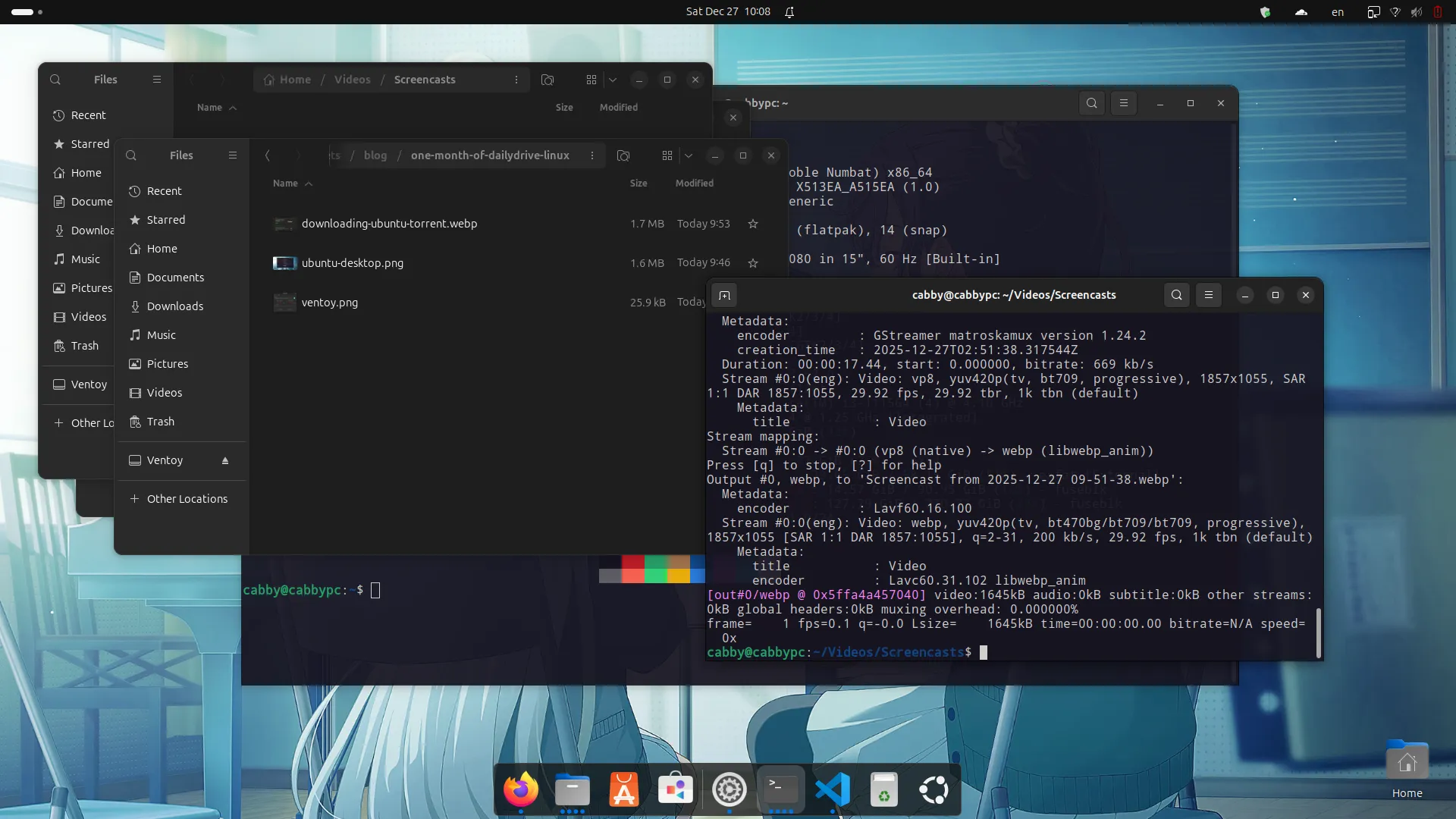
First, let me admit that I haven’t completely switched to Linux: Windows is still there and I am basically dual-booting. This is to make sure that transition is as smooth as possible so that I can jump to Windows immedately if there are some urgent tasks that I haven’t figured out how deal with on Linux.
Today marks a few months of using linux as the daily OS, I think it’s time to document of what happened in the last month, so that if you’re about to dive into this rabbit hole, you know what to expect.
If you’re already on Linux side, well, hope you will have a good laugh. :)
Preparation
My distro choice is Ubuntu 24.04.3 LTS. There are a few reasons, but the main one is I’ve worked with Ubuntu Server in the past so I think I’m fairly know what to expect. Plus, I used Ubuntu Desktop for some college assignments back then so at least I know what to expect.
Well turn out, that was a naive thought. Ubuntu Desktop is entirely a different beast on top of Ubuntu Server with many many many different terms and technologies. For example, setting up IME for the first time back then cost me a few days to choose between fcitx5 and ibus, read about their expected behaviour on GNOME, wayland?
In short, if you’re a first-timer like me, brace yourself for the impact.
Torrenting Ubuntu ISO
The filesize of Ubuntu 24.04.3 LTS ISO is about 6.3 GB, just large enough for me to check if torrenting the file is officially supported. It is, though the way lead to the download page is well hidden, cost me several minutes from go to ubuntu.com/download to actual download process lmao.
With around 2000 seeds, torrenting the file is obviously the best download method. In fact it managed to get so much download bandwidth all device in my network suffer delay issues during the process lol.1
Installing Ventoy
Before my discovery of Ventoy, I use Rufus to reformat the whole USB whenever I want a bootable USB for various tasks. This is a bit unconvenience because I have to dedicate the whole USB just for a single image. While it’s possible to add files to the created bootable USB, maintaining it become a really annoying task.2
Ventoy help to ease the pain by allowing multiple ISO on one stick. No reformat needed: Just copy it to the stick and it will present in Grub2 menu next time you boot into it. I love it so much because it’s the whole ISO file, you can even calculate the checksum after copying to ensure there are no corruption.
Installing it on the USB is a painless process too. I mean I can just show you the GUI app here, and you will definitely know what to do.
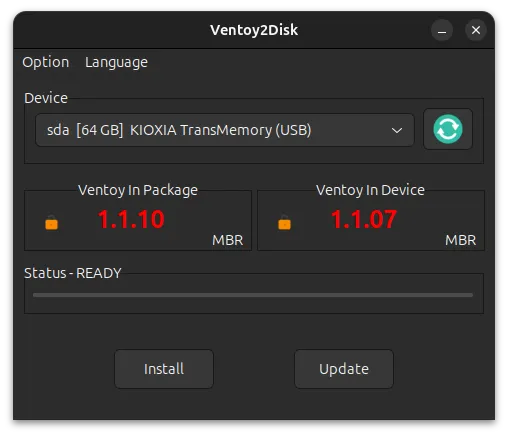
Yep, things are straightforward enough: select USB by clicking dropdown, hit Install to install Ventoy to your device, hit Update to update Ventoy in your USB. It’s just a few clicks to get started.
All left is now copying the ISO files to the USB. This is the content of my USB stick right now:
$ tree
.
├── linux
│   └── ubuntu-24.04.3-desktop-amd64.iso
├── windows
│   ├── 26200.6584.250915-1905.25h2_ge_release_svc_refresh_CLIENT_CONSUMER_x64FRE_en-us.iso
│   └── en-us_windows_10_consumer_editions_version_22h2_updated_oct_2025_x64_dvd_38efd00d.iso
└── winpe
    ├── Anhdv_Boot_Free_25.3.iso
    ├── NHV-BOOT-2025-V2000-STANDARD.iso
    └── WinPE11_10_8_Sergei_Strelec_x86_x64_2025.12.14_English.iso
Preparing the way to backpedal
Why? The reason is even if I’ve ensured the integrity of ISO files by comparing checksums, it’s still possible that the installation will fail for various reasons like software bugs, hardware bugs, unsupported hardware,… or even a bipflip caused by a cosmic ray from space. It’s not hurt to be extra cautious, plus there’s still plenty of free space in my USB so downloading a few more ISO will lessen the chance of me bringing my laptop to a repair service.
For Linux, the Ubuntu installation is actually a live environment, the whole OS booting from your USB, so aside from installing Ubuntu, you can use it to do some recovery tasks as well. So convenience!
Since I plan to dual-booting Ubuntu with Windows, it’s possible that Windows installation will be corrupted during the process, so I need to have some backup for Windows as well. That’s why I have 3 WinPE ISO installed, plus a few Windows installation ISO.
Getting Windows (and my machine) ready
This one is actually quick. Boot into BIOS, disable the Fast boot option, and you should be fine. You can disable it in Windows if you want.
About disabling UEFI Secure Boot: It’s kinda depends on the distro you want to install, but it’s not needed for Ubuntu 24.04.3. It already support UEFI Secure Boot. Convenience heh? However, a bit of extra work are needed to boot into Ventoy with UEFI Secure Boot enabled, you can read about it here.
Creating a patition for Ubuntu
My laptop only have a single 512 SSD, with 2 patitions pre-created by the time of purchasement, and I left it as is until today. Since there’re chance this will fail, a third patition are need to be introduced to keep my data safe from having to nuke either of the two OSes. The plan was, shrink the Windows data patition then create a third partition at the end of it for Ubuntu installation. Final result will be something like this.
+---------+--------------+------------+
| Windows | Data         | Ubuntu OS  |
| OS      | patition     |            |
+---------+--------------+------------+
After failed attempts of trying to do it on Windows3, I managed to do it in the live environment of Ubuntu by using GParted.
NOTE
I should’ve created a fourth partition for /home to seperate OS installation with user files. This is much safer, you can just reinstall the whole OS with minimal data loss (given your important data is in /home).
Installing Ubuntu
Booting into Ventoy
Step one is boot into USB. You might have to enter BIOS to change boot order or manually select your USB to boot. I highly recommend you to change the boot order during the installation so that it won’t automatically boot into Windows by mistake.
To do that, the first step is finding the BIOS key to boot into BIOS4. For ASUS (aka my machine), the BIOS key is F25.
After getting into the BIOS, change the boot order to USB, then save all and reboot. You will be greeted with the iconic Ventoy’s Grub2 menu. Select Ubuntu iso file name and let the game begin.
Booting into Ubuntu ISO, and installing it
From here, a second Grub2 will be presented, this time from the Ubuntu ISO file. Usually, you can just select the first option and you’re good to go.
The installation is pretty straightforward: Almost everything you need to do is in the installation wizard. Might require a bit of technical knowledge to know what to choose comparing to Windows installation but seriously I like it. The only thing I have to do outside of the installation wizard is that shrinking the Windows data partition. Perhaps there’s an option for that in the wizard but I haven’t yet to make the discovery. Inform me if you know!6
Anyways, going through the installation wizard, do what it says and done. then can reboot, unplug your USB and you will be greeted with Grub2 screen to select which OS to boot. Pick Ubuntu and have fun!
Next, I will write about my experience in configurating and updating your new OS.
Footnotes
-
To give something back to the community, I seeded the file for around 2 weeks before removing it from my torrent client. It feels good to help people, right? ↩
-
There is one point in the past that I have 3 different USB sticks. Whenever I need to do something that involve USB, the next task would be which one is my WinPE stick? or I need 32bit but this USB have Windows 64bit ISO. ↩
-
At first I tried to shrink the partition by using the Disk Management that comes with Windows by default. However, at first it only allow me to shrink about a few hundreds megabytes. I managed to increase the shrinkable space by checking Events log, find out what is the blockage and deal with them manually, then try again, then deal with the new blockage. This went for like 3 or 4 integrations, I managed to increase shrinkable space to around 8 GB, then a major blockage appeared. I believe it’s something-hash-table-something that isn’t possible to remove on a live OS, according what I’ve read. So I gave up and eventually look for alternative solutions. ↩
-
I don’t know why it vary between motherboard manufacturers, or sometimes between models from the same manufactuers so this is a bit tricky, trial-and-error moment. If you’re lazy (literally me), just spam all the function keys lmao. ↩
-
ASUS also made a video to show you where the F2 key is in case you aren’t familiar with your keyboard lol. ↩
-
Good thing that Ubuntu installation is a whole Live OS itself so you can just poke around to try out the new OS, or you can be like me, watch youtube while waiting for the installation lmao.
If you encounter errors while installing, you can just google what is it. This is a nice feature that Windows doesn’t have out of the box. ↩